
OrangeMemo is now available.

Get it on Google Play

Android

I recorded it,
but where did it go?

A tune that popped into your head, a quick photo you snapped, a note jotted down before it slipped your mind. Saving it was easy. Finding it later wasn't. Orange Memo connects capturing with finding.

Get it on Google Play
  • Use it right away, no sign-in
  • Works offline
  • Saved on your device first
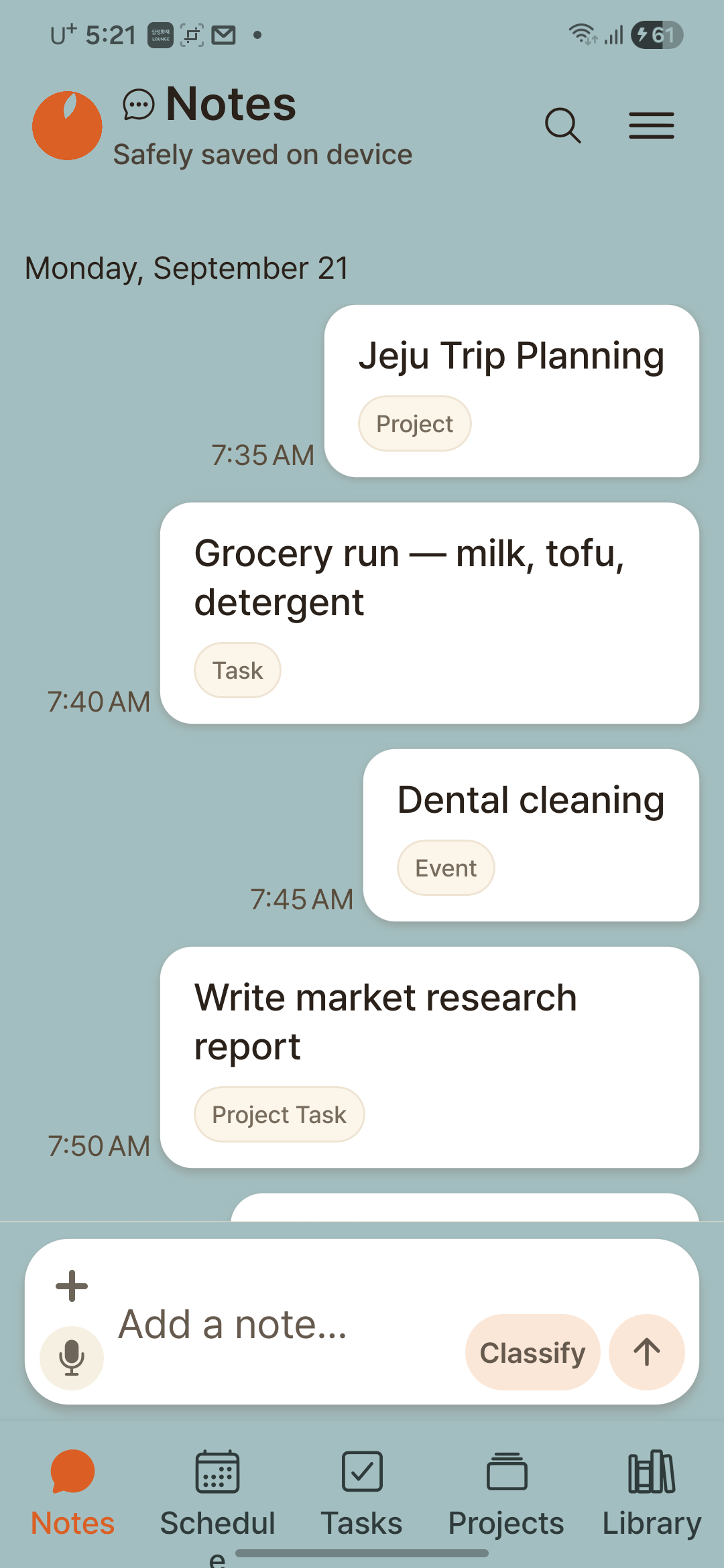
Orange Memo Notes screen — a timeline of notes, photos, and recordings as chat bubbles with an input box at the bottom

Why I built OrangeMemo

I've tried plenty of note-taking and productivity tools.

Simple apps were easy to use, but I struggled to find or organize things later. Apps with more structure had the opposite problem: they made me sort and categorize before I'd even finished typing.

I'd record a melody the moment it came to me, only to lose track of where I'd saved it later.

After trying app after app and eventually giving up on most of them, I thought:

"What if I built something that made capturing simple, but still had enough structure when I needed it?"

That became OrangeMemo.

With OrangeMemo, you capture the moment something comes to mind. Type a note and send it — it's saved instantly. Add a photo, file, or voice memo if you want. You don't have to decide where it belongs right away.

When you need to, organize it into an event, task, project task, or library item.

Capture first. Organize when you need to.
Fewer steps, less friction

While you open an app to write, the thought is already gone

A capture app wins on taps, not features. See how many taps it takes to save the same note.

A messaging app: Message yourself4steps
  1. 1Open the app
  2. 2Tap Search
  3. 3Find my name
  4. 4Open the chat

…then the input box

Orange Memo1step
  1. 1Open the app

The input box is already there — write

Two taps to save. Write, send, done.

Three taps to classify. It is just one extra tap.

OnePass Capture

One input box, from capture to classification

Jot it down first and decide where it goes later. If you already know where a note belongs, you can classify it as you write.

When you can't place it yet

Capture first, classify later

  1. Write straight into OnePass Capture
  2. Saved as an unclassified bubble
  3. Later, tap Unsorted on the bubble
  4. Pick a category → event, task, or project

When you already know

Classify as you capture

  1. Write in OnePass Capture
  2. Tap Classify in the input box
  3. Pick a category
  4. Saved as a bubble with a small category tag

Another way to classify right away: choose a category tab, then tap + Event or + Task to add it directly.

Three situations, one root cause

You saved it, but cannot find it again

Notes, photos, and recordings have the same problem. Saving is easy; finding is not.

A thought

Until now

You drop it into a self-chat and scroll for it months later. It disappears among conversations.

Orange Memo

Open the app and the input box is ready. Find it by keyword, date, or type.

A photo in a hurry

Until now

Receipts and whiteboards go into your gallery. Then you search thousands of photos for one.

Orange Memo

Take it in the app and keep it there. Your gallery stays clean.

A melody

Until now

You open a recorder and get Recording 047. You no longer know which one was the melody.

Orange Memo

Tap record and add one line. Find it by that line later. When your hands are busy, speak it.

After capture

When a note becomes something to do

Do not classify it at the start. When it needs a date or an owner, one button is enough.

  • As an eventAdd dates, times, and repeats. See it again on your calendar.
  • As a taskTrack progress and the next action. It appears on Today.
  • As a projectGroup multiple project tasks under one goal.
  • As a library itemKeep it as an idea or reference in your Library.
  • Leave it as isYou do not have to classify it. It stays a record and remains searchable.
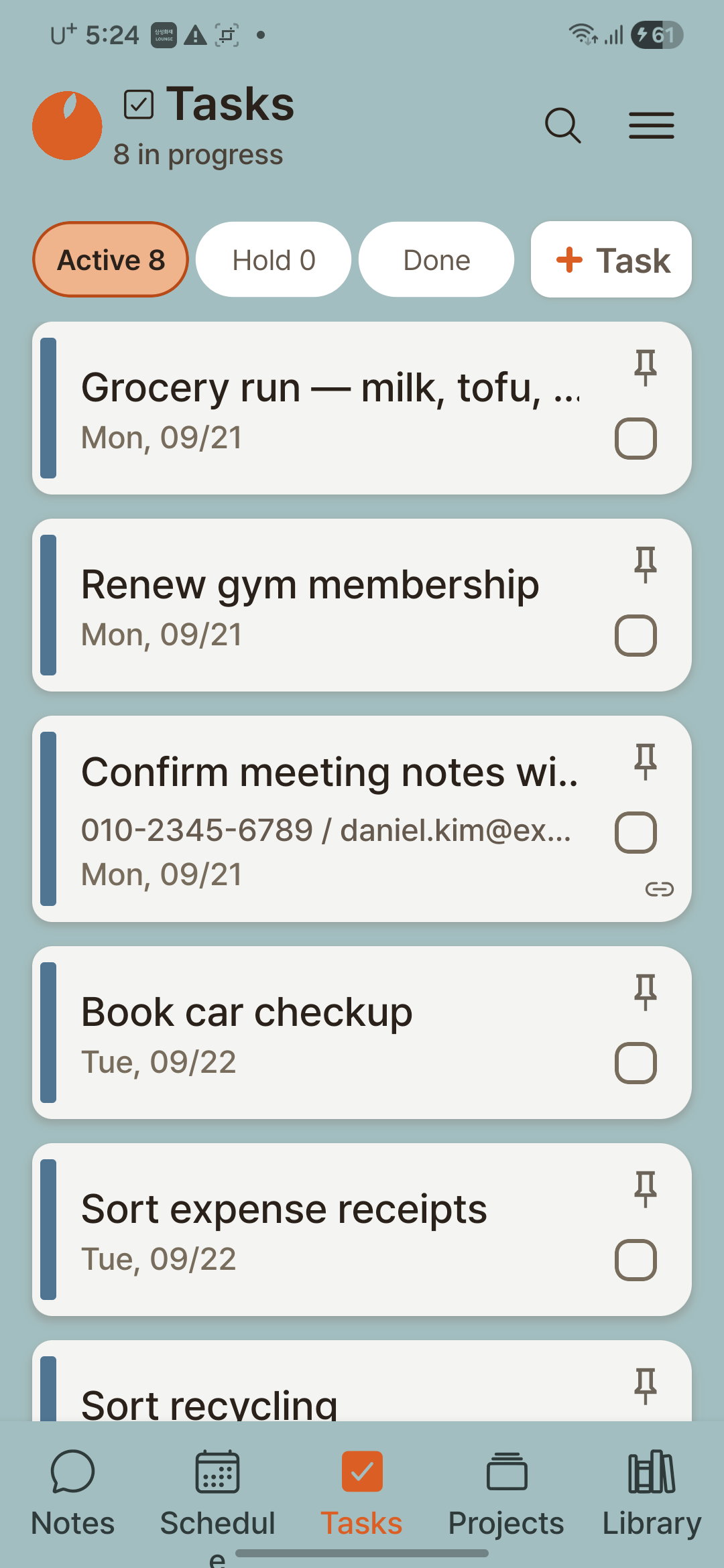
Orange Memo Tasks screen — active, hold, and done filters with a list of task cards

For people who organize their own work

If your company does not give you a collaboration tool

For owners, salespeople, and freelancers who organize work themselves, Orange Memo carries you beyond capture.

Email the whole thing

Send a project’s tasks, photos, files, and recordings in one email. Nothing to copy over by hand.

Three ways to back up

Device storage, Google Drive, or email. Keep writing without worrying about losing a record.

Google Calendar connection

See Orange Memo events in the calendar you already use.

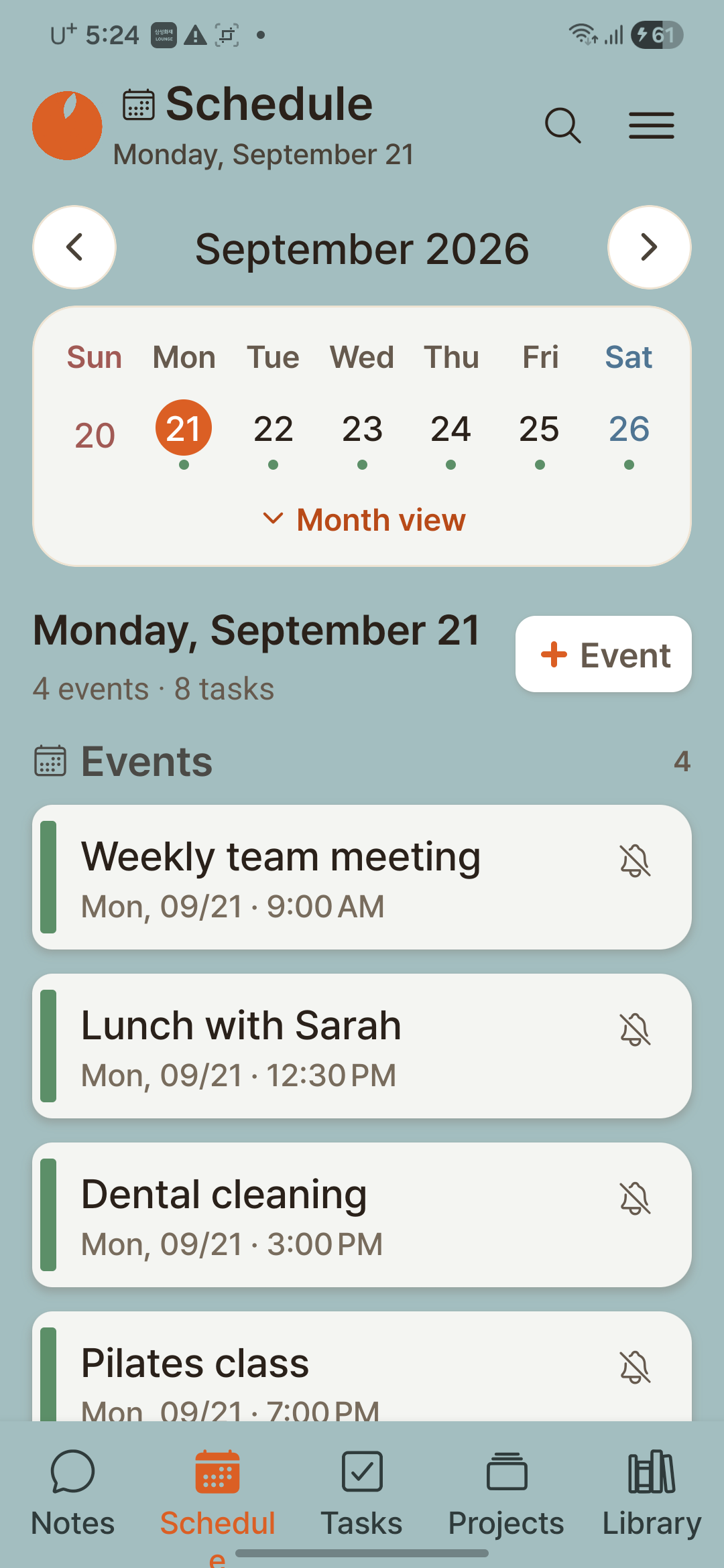
Orange Memo Schedule tab calendar — a month grid with the day's events and task deadlines

Events, task deadlines, and recurring instances in the Schedule tab's calendar

Events and task deadlines meet on the calendar inside the Schedule tab. See what today holds in one view.

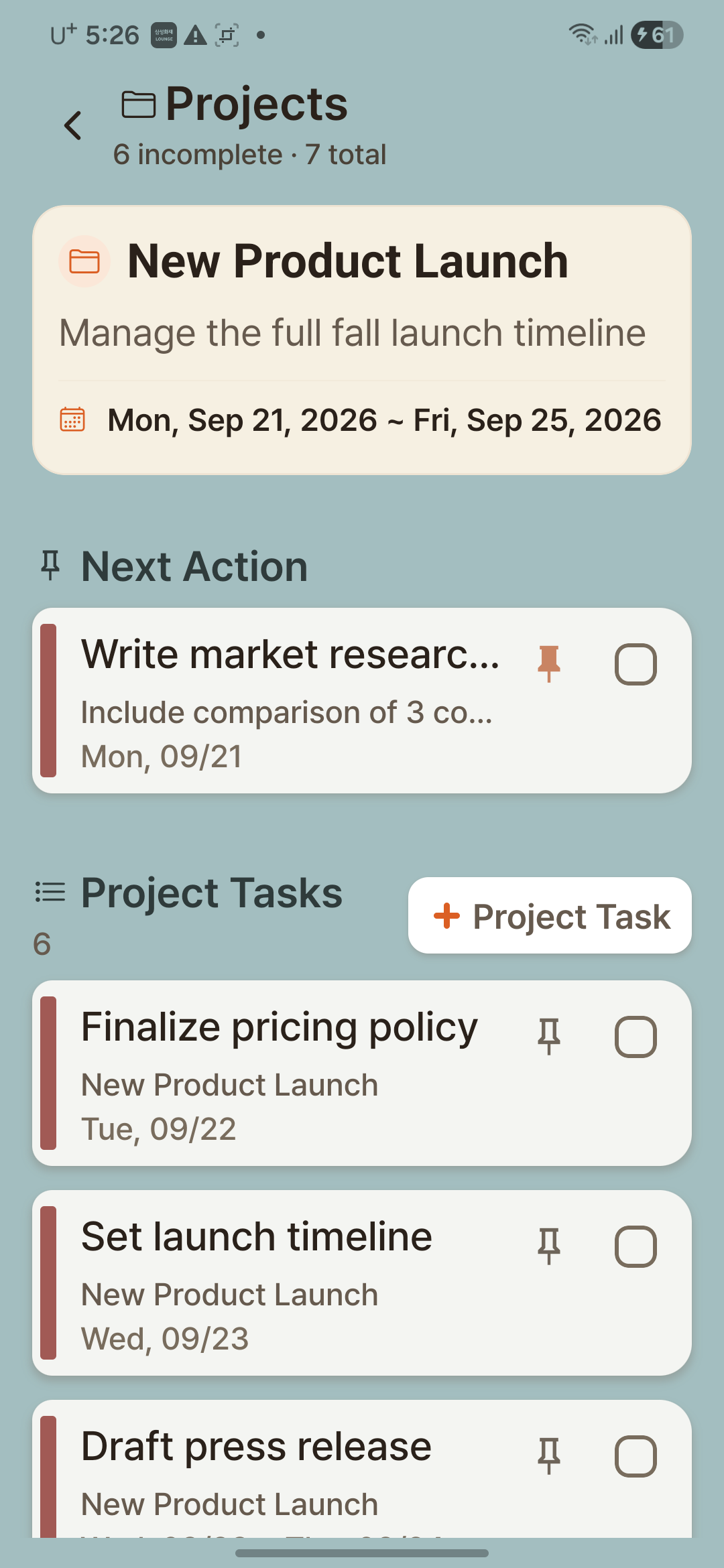
Orange Memo project detail screen — Next Action and Project Tasks list

Keep projects and next actions together

Group related tasks into a project and keep the next action visible alongside your project tasks.

Ideas & References

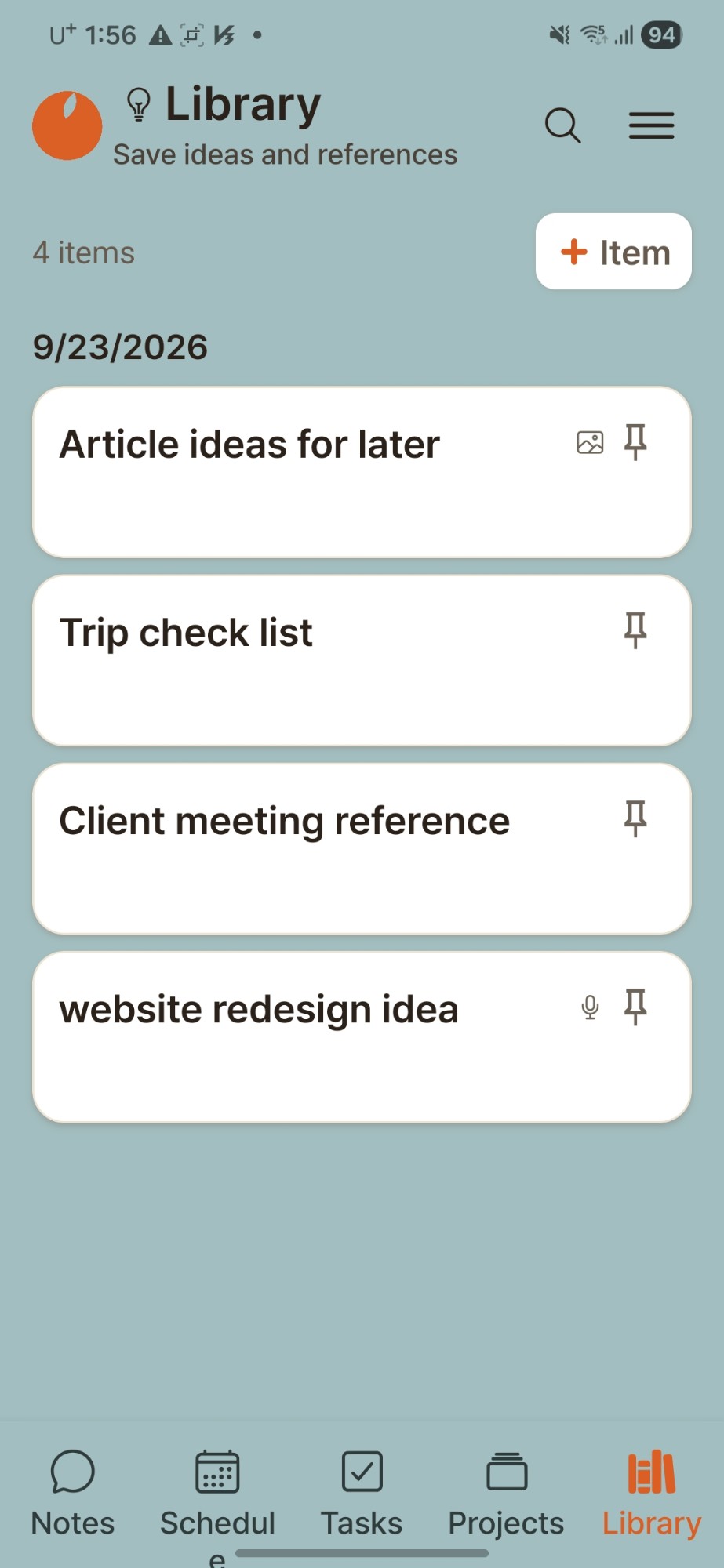
Keep useful things in one place

Save ideas, references, files, and anything you may want to come back to later. Find them again when you need them.

Orange Memo Library screen — a list of ideas and references

Before you start

Saved on your device first

Offline first

Capture without internet. Saving does not depend on a server.

Sign-in is optional

Start without an account. Google or Kakao is needed only to connect a calendar.

Delete anytime

Delete your account and data from the app settings. Account & data deletion

Capture in 3 seconds, find it 3 months later

Start with whatever's on your mind right now.

Get it on Google Play